Bright Horizons Back-Up Care - Provider FAQs

Bright Horizons Key Terms Glossarys
- Compass: Our new, purpose-built Bright Horizons platform for managing Back-Up Care bookings, provider relations, and client services. Compass is our only booking platform, consolidating provider and client information in one integrated system.
- Contact Centre: The support team handling booking administration tasks, including changes, cancellations, and general assistance for Back-Up Care users.
- Elysium: A legacy portal from My Family Care used for managing bookings. This system was retired in 2025 as all operations have migrated to Compass.
- Employee: A parent or carer utilising the Bright Horizons Back-Up Care benefit provided by their employer.
- Provider Relations Team: The team responsible for managing relationships with care providers, including nurseries, childminders, holiday clubs, and elder care services, to ensure high-quality service and booking fulfilment.
General Questions
Bright Horizons has always provided emergency back-up care via their Compass booking system.
We are working towards an enhanced system called Compass 2.0 where we plan to incorporate the best features from all our legacy platforms.
A. All bookings will have a reference attached and our dedicated booking team will assist you with any questions or queries you may have. Please note, a booking reference can cover either an individual day of care or multiple days of care depending on how many days an employee decides to book at that moment in time.
A.
- If you have a query about your Compass booking, please contact our Compass Booking Team on 0800 247 1101.
- If you have a query about Compass provider payments, please email BUCProviderPaymentQueries@brighthorizons.com
- If you have a query about your Compass account, please email BUCProviderEnquiries@brighthorizons.com
A. We have a dedicated Network Growth team to support providers with joining our network. The team will reach out to you to complete our Provider Setup Form. The team will then complete a few simple checks. These include (where applicable) regulatory body checks (i.e. Ofsted/Care Inspectorate/CQC rating) review of insurance documents, ICO registration and food hygiene certificate. As well as discussing your opening hours, rates, our booking process and our cancellation terms to see if it’s a good fit for both parties. If you pass these checks, you will be sent a copy of our provider agreement and compliance statement to sign.
Once we have a returned signed copy of our provider agreement and compliance statement, the team will create your Compass account. This can take up to 21 days to complete and you will be notified once your live.
A. For the Compass system you will need to email BUCProviderEnquiries@brighthorizons.com with the details, and we will update these for you.
A. If an employee cancels before 5pm two working days before the date of care, then no payment will be made to you.
If an employee cancels after 5pm two working days before the date of care, then:
- For Nurseries/Holiday Camps/Childminders - a payment of half of the day rate or the half day rate (if there is one in the system) will be payable to you.
- For Nanny/Adult Care Agencies – A payment of 4hrs will be payable to you, unless the care is cancelled within one hour of the start time on Compass, in which case we will pay the full hours of care.
The provider will always receive an update email, notifying them of the cancellation. For all bookings this will be sent via Mimecast Secure Messaging.
We will notify You of any reservation, cancellation or other change to a reservation. You agree not to accept any requests for reservations, changes or cancellations directly from any Employee and will inform the Employee that they must contact Us directly; You agree and acknowledge that in no event will We be responsible for any agreements made directly between You and an Employee.
Payment Questions
Providing the care is booked and confirmed via our booking system. The employee requesting the care does not pay you (the provider) directly, Bright Horizons cover the full cost of care.
A. Any queries regarding payment should be sent to BUCProviderPaymentQueries@brighthorizons.com
A. Depending on the care type there are different options, please see the guide below and if you have any questions, please contact BUCProviderPaymentQueries@brighthorizons.com
Care type
Compass
Nanny Agency
Manual invoicing
Adult Care Agency
Manual invoicing
Childminders
Auto pay*
Holiday Camps
Auto pay*
Nurseries
Auto pay*
Virtual Tutoring
Manual Invoicing
Pet Care
Manual Invoicing
If manual invoices are required, please send them into:
*Holiday camps, Childminders & Nurseries are automatically set up on autopay for Compass, unless you specifically ask not to. If you would prefer to manually invoice, please let the team know during the registration stage.
A. Auto Pay for new setups
We do an Autopay set up run once a month around the 15th. Any new providers that have joined Compass between the last set up run and this one (15th of previous month to 15th of this month) will be included in the set-up report, our finance team will then set up the providers autopay profiles in the system ready for the 1st of the next month to start receiving payment by 1st of the month following month. (Example table of dates below)
Due to the timings of the initial autopay set up, if providers wish to manually invoice for the first month to receive payment quicker, they are welcome to do so. Please follow the instructions in the following Q&A to find out how to complete a manual invoice and where to send it. Once autopay is set up there is no need to complete any further manual invoices.
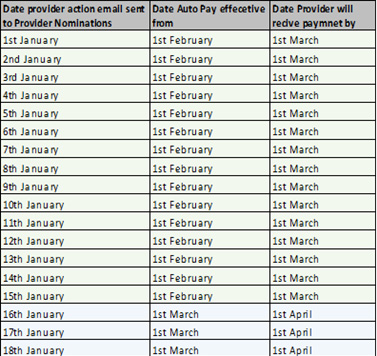
Ongoing Auto Pay Timings
We automatically generate an invoice on the first day of each calendar month, for the services provided in the preceding calendar month - We pay each invoice within 30 days of its generation.
You will also receive a spread sheet via Mimecast Secure Messaging detailing all care details from the previous month by the 15th of the current month, so if there are any errors, you can inform us before the payment is made.
N.B It is the responsibility of our Providers to reconcile the report they receive against their books. They will receive this by the 15th of the month prior to the payment being made on 1st of the following month. If for any reason you notice any discrepancies when reconciling the report, please notify us within 5 working days to provider.billinguk@brighthorizons.com
As mentioned above, depending on when, within the month, you are initially set up for Autopay, you may miss the monthly cut off for the first payment, the payment the following month will include this unless you choose to manually invoice during the first month to receive the payment quicker.
A. We ask all providers to complete a registration set up form upon joining the network, included in this is a section to complete with your bank details. This is what we will use to set up your accounting profile which determines where your payments are sent. If your bank details change or you are not sure if we have the correct details, then please contact the provider relations team BUCProviderEnquiries@brighthorizons.com with the correct details so your accounting profile can be updated.
Please note, we do not cross reference the bank details on the invoice with your accounting profile on our system, so simply updating the details on the invoice is not sufficient, you must notify the team using the email above.
Invoicing for Nanny bookings
A. We pay our Nanny agencies a set fee rate per hour of care provided. These rates are discussed and agreed with you before joining the network. When and what you choose to pay your Nannies is entirely your decision and responsibility.
You will need to invoice Bright Horizons for the care provided. You will need to wait until all days of care under the booking reference have been completed before you can invoice for it but other than that you can send through invoices as frequently as you would like, some providers choose to do this after every completed booking, others decide to complete fortnightly invoicing and do lots of bookings at once. The choice is yours but please note that bookings are paid 30 days from the date the billing team receive your invoice (not 30 days from when care is complete). All Compass invoices must be sent through to provider.billinguk@brighthorizons.com
Invoicing for Adult Care Bookings
A. All invoices need to be sent to provider.billinguk@brighthorizons.com
Please note that bookings are paid 30 days from the date the billing team receive your invoice.
Nanny specific FAQ
A. Any new bookings appear under ‘Available Reservations' in the portal. You have the decision whether to ‘Staff Now’ and confirm the booking request or to mark it as ‘Not Interested’ which will remove the booking request from your portal and send it to another agency.
Once you have selected your Nanny from the dropdown list and selected 'Staff Now,’ the booking will be confirmed and will move in the portal to ‘Scheduled Reservations.’
You will receive an authorisation email confirming the care is booked. This email includes all the details the Nanny will need for the booking, please forward this email onto your Nanny.
The same information can be found when you open the booking under ‘Scheduled Reservations’ in the portal.
A. To add 1 caregiver at a time: Go to the ‘Caregiver’s’ tab on your provider portal, this will then show you a list of all active caregivers. Select the icon in the top right corner that says, ‘Add a Caregiver.’
Once in the add caregiver field, complete all the Nanny’s required information on the opening page:
- Name.
- First Aid trained.
- DBS date (if on renewal service, enter the last date this was checked).
- Smoker.
Once these are completed, move down, and complete the Nannies qualifications (if your Nanny has a qualification please select ‘Nanny’ from the drop-down box and add a description of the qualification in the ‘description’ box), training and personal attributes.
The assessment field is required but we no longer complete these. To get passed this please select a date at random and put the mark as 100 to pass this section. All required fields with have a * icon next to them, although the more information available for families the better.
You can add multiple caregivers to the system at once, you can do this by selecting ‘Add a Caregiver’ once this opens you should see ‘Add Multiple Caregivers.’ Select this, the system will link you to an Excel sheet which will allow you to add multiple caregivers. Once the Excel sheet is complete, you can upload this by going to ‘Add Multiple Caregivers’ and uploading the document via ‘Upload Caregiver File.’
You can update individual profiles to add more information if required once these have been uploaded.
Onboarding, Auditing and Nanny criteria
A. As Nanny agencies are not regulated like other care types, we complete an onboarding audit of every new agency that joins us, as well as an annual review audit and spot checking of Nanny files. This helps to safeguard our client families and maintain quality on our network. See below a summary of our criteria.
Onboarding required information.
Company Number (CRN)
VAT Number (if applicable)
Certificate of Professional Indemnity Insurance
(Minimum of £100,000)
Please send a copy
Expiry:
Certificate of Employer’s Liability Insurance
(Minimum of £5,000,000)
Please send a copy
Expiry:
Public Liability insurance
(Minimum of £5,000,000)
Please send a copy
Expiry:
ICO Registration Number
Expiry:
We also spot check 3 Nannies within the agency using the following criteria:
Full CV
Please send a copy
Completed a Face-to-Face Interview? (if applicable)
Years of Experience (minimum 2 years sole charge)
Ref 1 Including dates employed (most recent role)
Please send a copy
Ref 2 Including dates employed (preceding role)
Please send a copy
Ref 3 (If last 3 years not covered in previous 2 roles)
Please send a copy
Photographic Proof of ID (passport or photocard driving licence)
Please send a copy
Right to Work Document UK
Please send a copy
Enhanced DBS & Children’s Barred List Checks (less than a year old if not on the update service OR checked within in the last year if on the update service)
Please include DBS number and either date of last update service check or expiry date if it’s a non-update service DBS (expiry date is 1 year from issue date)
Expiry:
Valid Paediatric First Aid Certificate (Dated within the last 3 years) – must be face to face not online
Please send a copy
Expiry:
Nanny has signed Terms & Conditions constituting a contract of services to work
Please send a copy
Evidence of Payroll with Provider
Please send a evidence
Centre-based specific FAQ
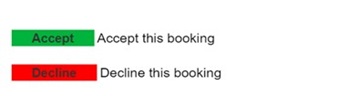
A. For centre-based providers, once a booking is submitted, an email will be sent to all eligible providers. An option to ‘Accept’ or ‘Decline’ will be on available on this email. Providers can choose which response best suits them depending on availability etc.
Compass - Instant Book
On Compass, we also have the option for Nurseries & Holiday Camps to utilise our Instant Book Provider Portal. The Provider Portal allows you to update spaces within your location without the need to email us.
There are lots of benefits including:
- Instant Book – employees can book Back-Up care days instantly via their employee portal and confirm the booking immediately.
- More independence – there is no longer a need to email Provider or Contact Centre teams to make updates to your spaces or availability, and fewer phone calls from our Contact Centre
- Priority – you would be at the top of our provider list when employees are looking for care in your area, so this is a great way to boost your bookings and attract new families.
- Saves time – no need to wait for emails to be returned or the call centre to confirm that changes were made
- Real-time updates – updates to the portal can be made last minute and will be updated in the Bright Horizons Back-Up care system immediately!
A. If your rates for providing care have changed, you will need to contact us on BUCProviderPaymentQueries@brighthorizons.com. Your new rates must be approved by Bright Horizons before care at the new rate can commence. If you submit an invoice with a new rate without first gaining approval, the invoice will be rejected.
We require at least 90 days notice, once received our team will review your request and respond accordingly. For auditing purposes, we require a fee sheet to be submitted alongside the rate increase notice. This should be sent as a Word or PDF attachment and provide full details of all locations to be updated if the increase applies to more than one setting. All rate increases are subject to review and providers may have no more than one rate increase every 12 months
A. The Compass platform is internally operated, therefore all account updates or amendments must be emailed to BUCProvidersEnquiries@brighthorizons.com where the Provider Relations Team will action accordingly. Unless you are looking to update instant book availability which you can do yourself via the Instant Book Provider Portal.
Adult Care Specific FAQ
A. You will be emailed the booking request and/or called by the Contact Centre team. You can then confirm or decline the booking depending on if you have a carer available who fits the requirements of the request. All care recipients will need to have a care assessment in place before care can begin so, please factor this in when confirming if you can support with the booking.
Your emails will come via Mimecast Secure Messaging platform. We also have the option of a booking portal to manage your Compass bookings. If we set you up with a portal, instead of the Contact Centre calling or emailing you will receive a notification via your Mimecast account notifying you of a new booking request. You can then open this within your portal to see full details and staff it there.

